Run statuses
Each run has one of the following statuses:| Status | Description |
|---|---|
running | The Automation is currently executing steps |
completed | All steps finished successfully |
failed | A step encountered an error and the run stopped |
cancelled | The run was cancelled before completing |
Listing runs
- Using the dashboard
- Using the API
Navigate to the Automations page and select an Automation to view its runs.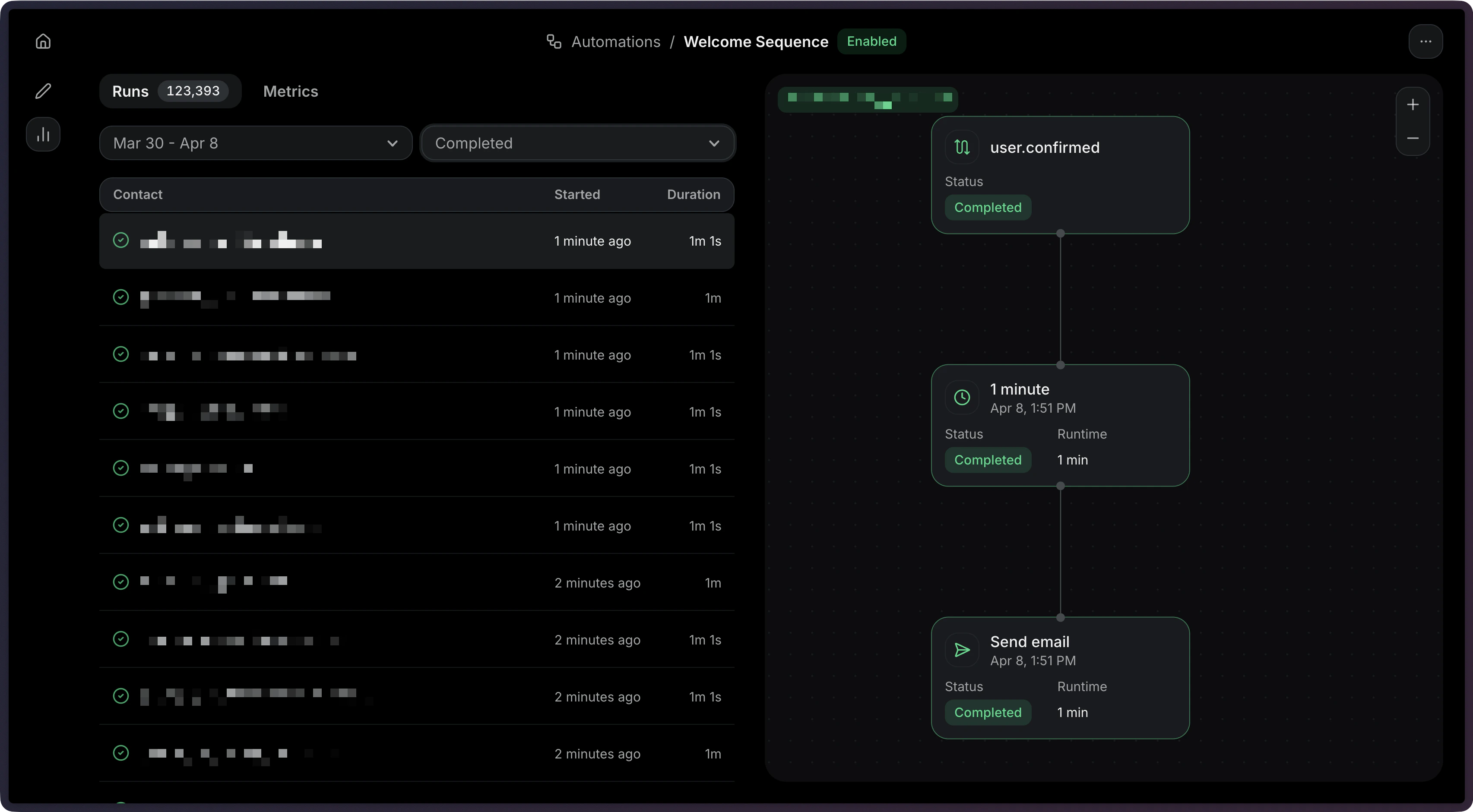
- Status — Whether the run is
running,completed,failed, orcancelled. - Started — When the run began.
- Duration — When the run finished (if applicable).
Filtering runs by status
- Using the dashboard
- Using the API
You can filter runs by status to find specific executions.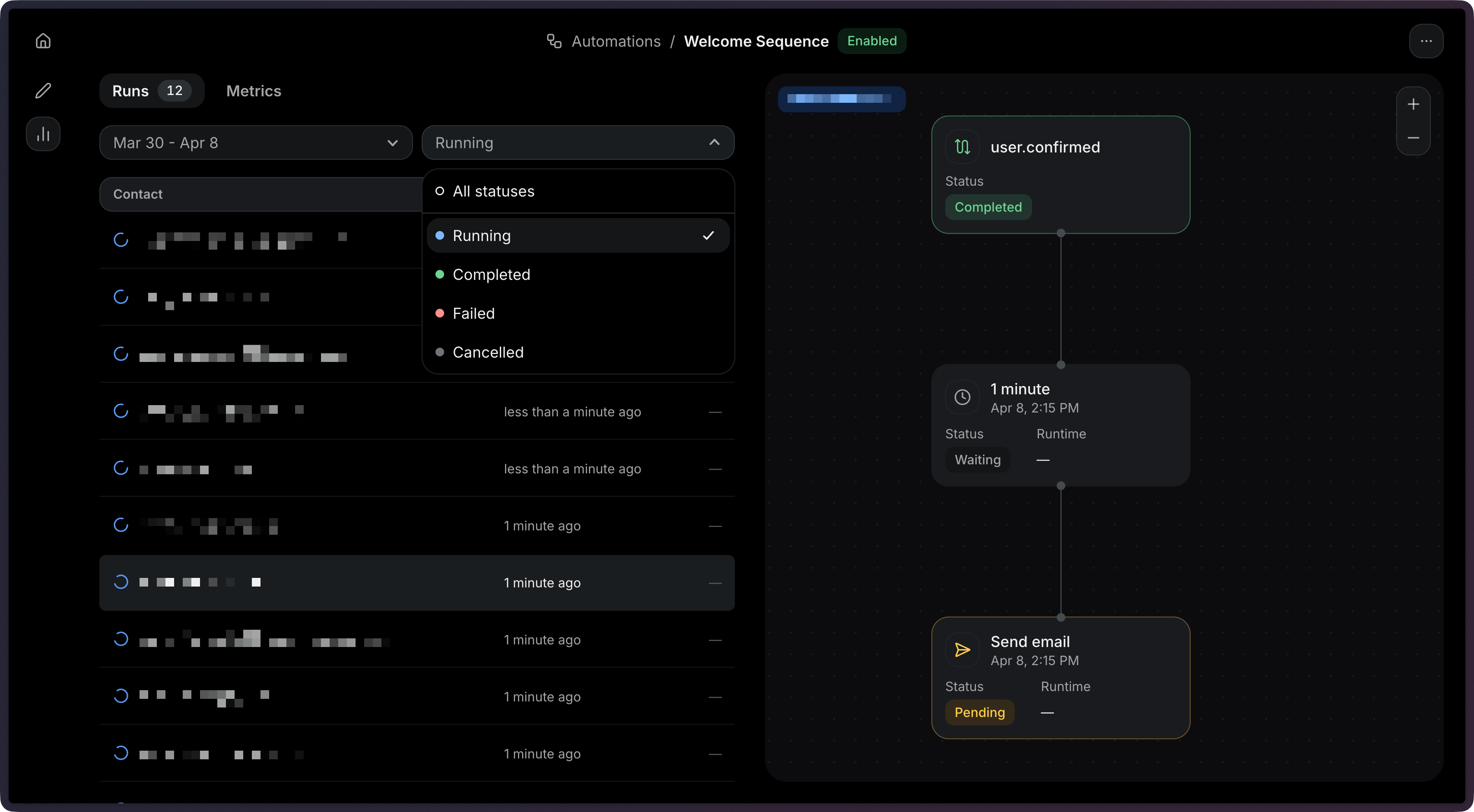
Viewing a single run
- Using the dashboard
- Using the API
Click on a run to view its details, and select the step you want to debug.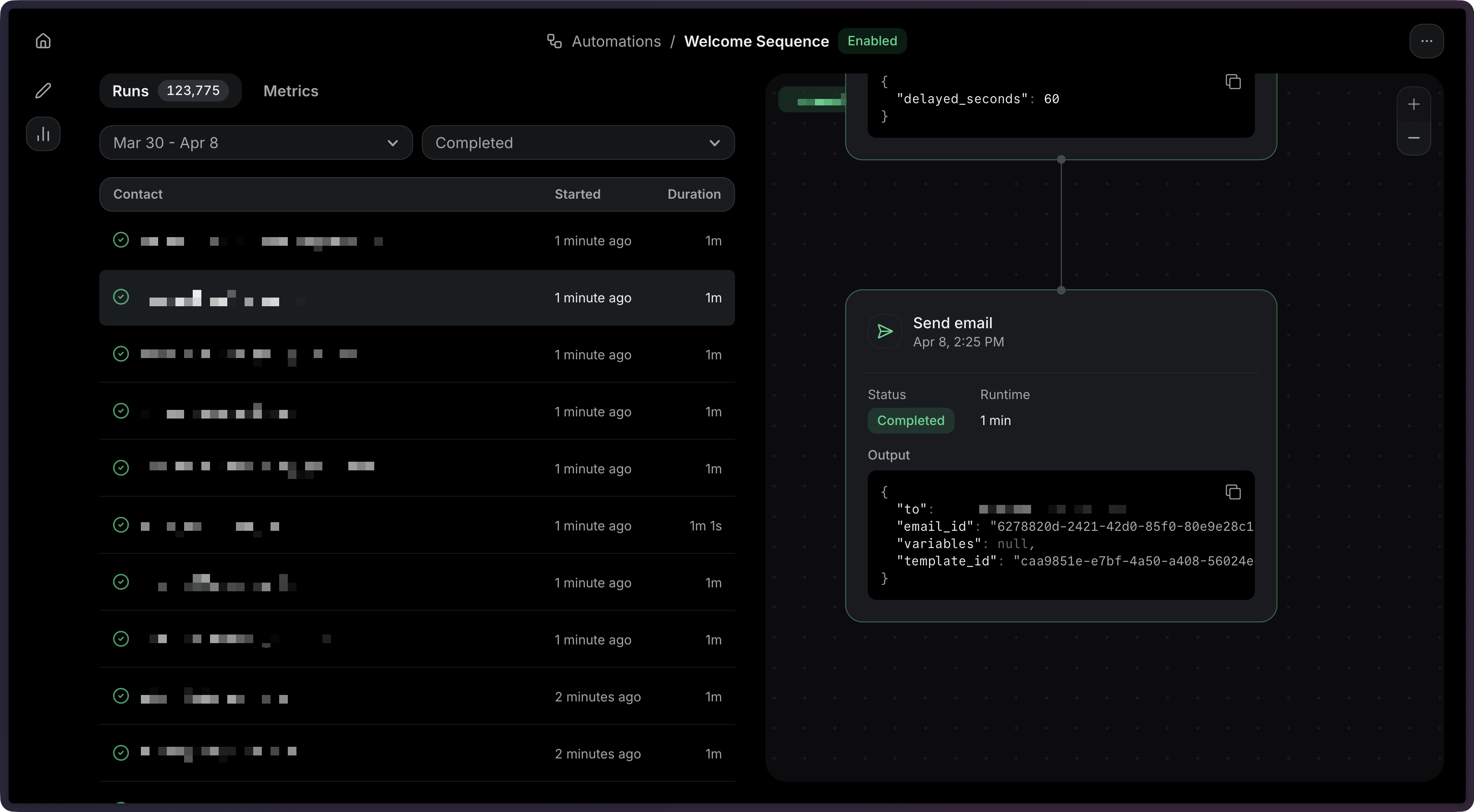
Debugging failed runs
- Using the dashboard
- Using the API
Go to the Runs tab and click on a run to view the details.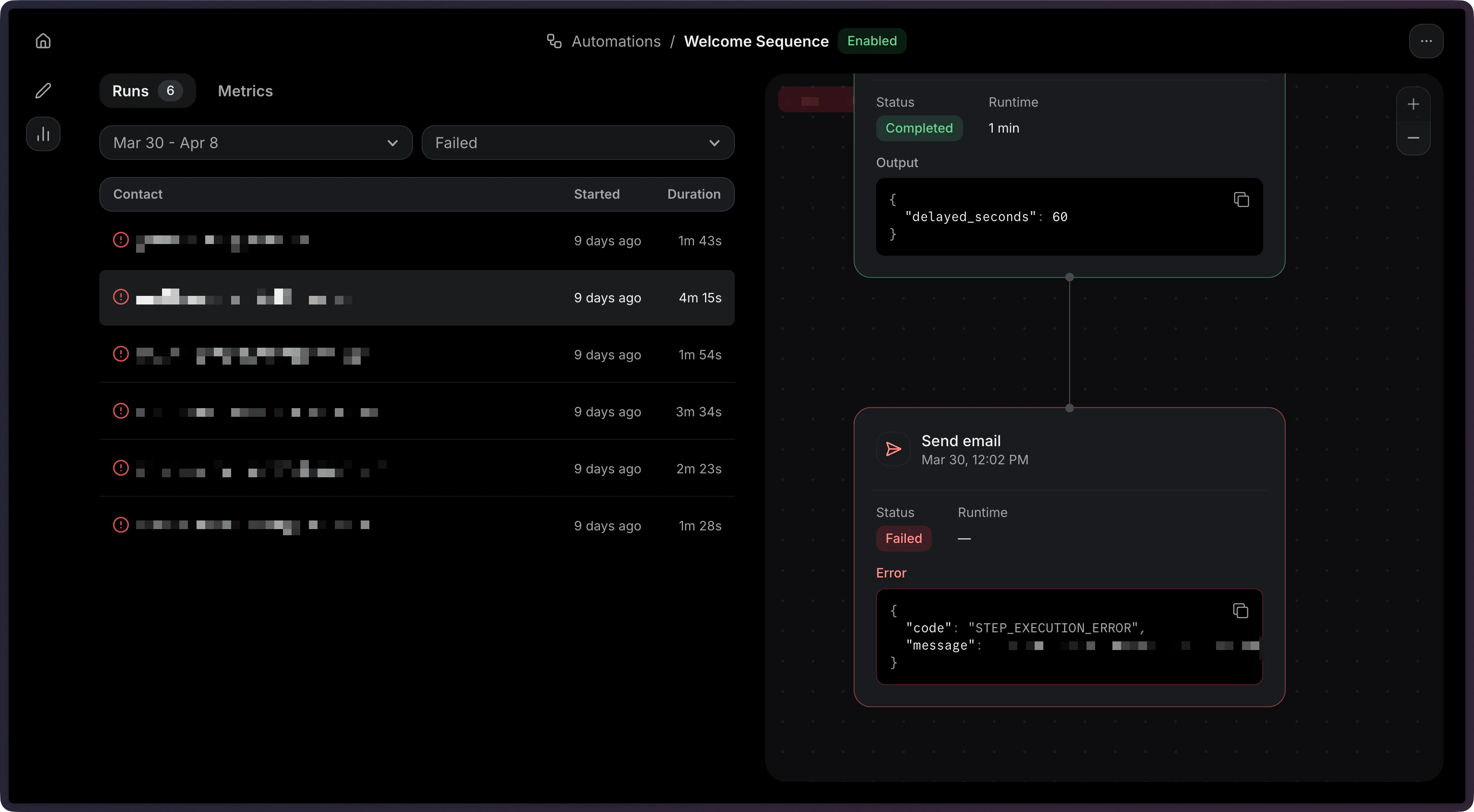
- List failed runs: Filter runs by
status=failedto find problematic executions. - Retrieve the run: Get the full run details including the
stepsarray. - Find the failed step: Look for the step with a
failedstatus. - Check the error: The
errorfield on the failed step contains details about what went wrong.
- Condition error: A referenced field may not exist in the event payload.
- Wait for event timeout: The expected event was not received within the timeout window.
- Send email failed: The template may not be published, or the sender address may not be verified.
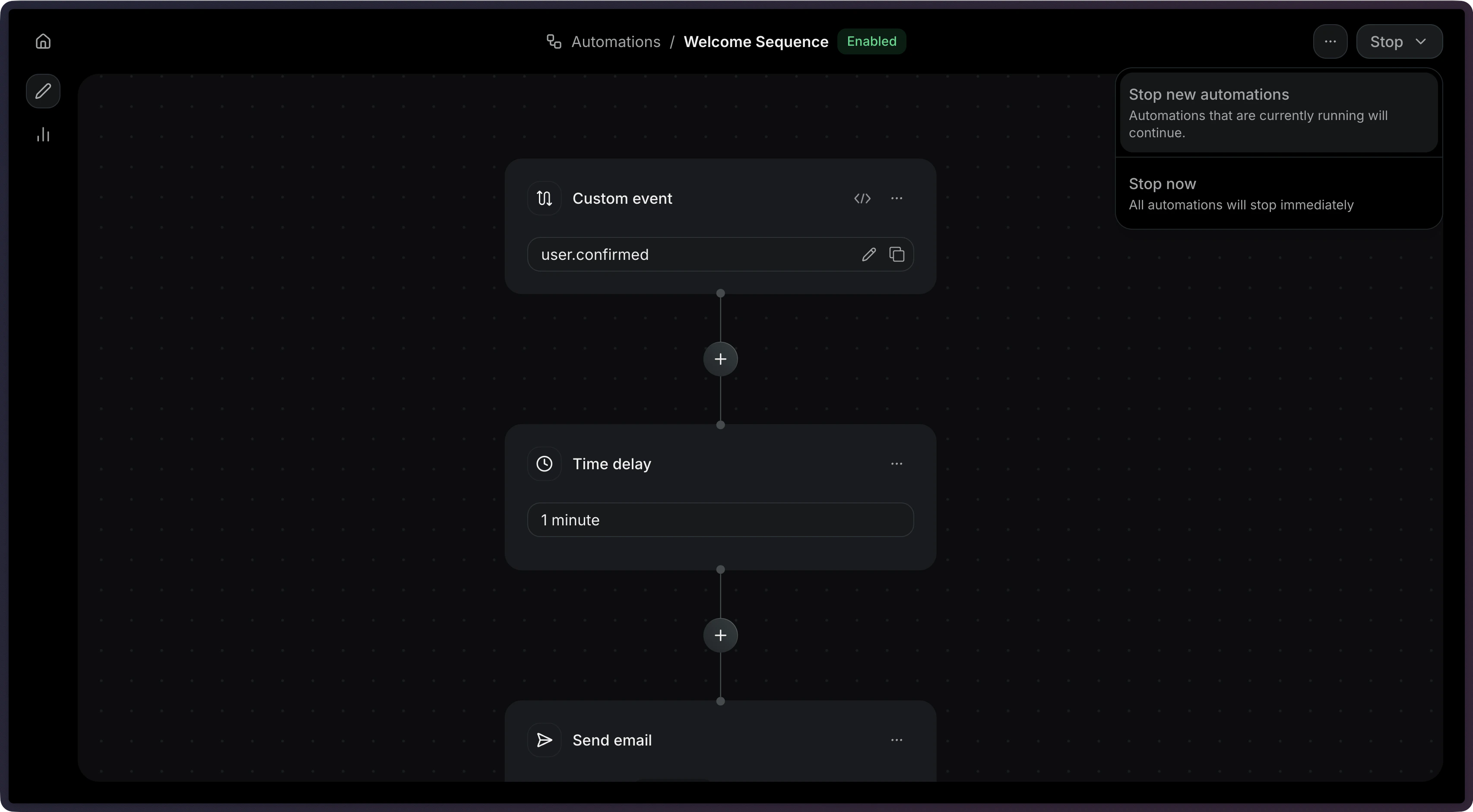
Stopping an Automation
- Using the dashboard
- Using the API
Click on the Stop button to stop an Automation.